

There are several helpful reports in Smart Cookies. In this article we will take a deeper dive into a few of the most commonly used reports. When pulling any report in Smart Cookies you will start from the Report tab> Current.
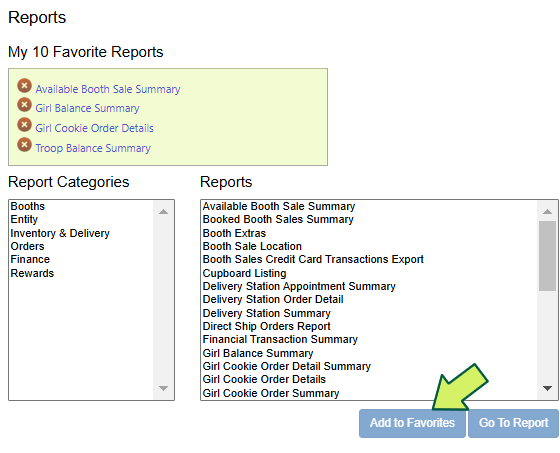
From the report screen you can select the report you are looking for and even choose to add it to your list of My Favorite Reports, by highlighting and clicking Add to Favorites.
Select the report you want to run, then select Go to Report.
Click on the report below that you would like to learn more about.
Pending Manual Cookie Share Report
The Pending Manual Cookie Share Report ensures every girl receives proper credit for the Cookie Share donations customers already paid for. It reports Girl Delivery with donation orders, Total Cookie Share that has been manually entered and the balance of Cookie Share which needs to be entered on each girl.
This report tells you whether a Girl Scout’s Cookie Share donations recorded in Digital Cookie match the Cookie Share credit entered in Smart Cookies.
Think of it as a reconciliation report: Did the girl get credit for the donations customers already paid for?

What Each Column Means
Since our council does not do IO per girl the Total CS not part of IO column will always match the Total CS from Girl Delivery w/ Donation column.
| Column | What it represents |
|---|---|
| Total CS from Girl Delivery w/ Donation | Donations customers purchased through Digital Cookie (money collected already) |
| Total Cookie Share Manually Entered | Cookie Share packages the troop entered in Smart Cookies to give the girl credit |
| Balance | The difference between those two numbers — this tells you if you need to take action |
The Only Column You Need to Focus On: Balance
Use this quick rule:
| Balance | Meaning | What You Need To Do |
|---|---|---|
| 0 | Everything matches | Nothing — girl is reconciled |
| Negative (-) | Customers paid for donations but the girl hasn’t received credit yet | Enter a Virtual Cookie Share order in Smart Cookies |
| Positive (+) | Girl was given more credit than customers paid for | Check for over-allocation or cash/check donation |
Why This Happens
Digital Cookie records the payment
Smart Cookies records the credit
You must manually connect them.
How To Fix a Negative Balance
A negative balance means:
The girl collected donation money but has not received package credit yet.
Action:
Create a Virtual Cookie Share order for the difference.
Example:
- Digital Cookie shows 65 donations
- Smart Cookies credit shows 28
- Balance = -37
Enter a Virtual Cookie Share order for 37 packages
How To Handle a Positive Balance
A positive balance means:
The girl received credit for packages that were not paid through Digital Cookie.
Common reasons:
- Cash/check donation
- Over-assigned Cookie Share
Action:
Verify the troop collected money or adjust allocation.
Important Notes
- The “Manually Entered” column does NOT include Smart Booth Divider allocations
- This report should be reviewed weekly
- Final verification: run the Girl Cookie Order Detail Report → filter Girl Delivery w/ Donation
Simple Workflow (Best Practice)
- Run report weekly
- Sort by Balance column
- Fix all negative balances
- Verify positive balances
- Re-run report until all zeros
Girl Balance Summary
The Girl Balance Summary provides a summary of all cookies and monies assigned to a girl in Smart Cookies.
Monies: This reports reflects all credit card transactions for Girl Delivery and Direct Ship orders and all cash/check payments entered by the troop volunteer.
Cookies: This report reflects all cookies assigned to the Girl Scout in the initial order, Direct Ship, Care to Share and any transfers made from the troop to girl by the troop volunteer.
This report does not reflect “offline” sales entered by girl/parent in Digital Cookie. Please be sure that all troop to girl transfers have been entered and all Care to Share orders assigned before issuing this report to parents.
| Booth Transfer IN | These are transfers made from the Smart Booth Divider. These included transfers from the Virtual Delivery-Pending Distribution and included an order ID to help you locate them in Smart Cookies. |
| Non-Booth Transfers IN | These are transfers made to the Girl Scout, such a Troop to Girl transfer (T2G), and included an order ID to help you locate them in Smart Cookies. |
| Booth Transfers OUT | If you made a girl to troop transfer using the BOOTH CASES/PACKAGES, which enables a Girl Scouts to use troop inventory without financial responsibility, because the troop collected all monies and is only allocating credit to the Girl Scouts for packages sold, that would show up here. These cookies will show inside of () parenthesis as a negative number, moving inventory from the Girl Scout back to the troop. * Please note the BOOTH CASES/PACKGES is only used in rare cases. |
| Non-Booth Transfer Out | These are transfers made from a Girl Scout to a Troop and will show inside of () parenthesis as a negative number and moving inventory from the Girl Scout back to the Troop. |
*Please note this report has been edited to show you the various components and is not a whole report.
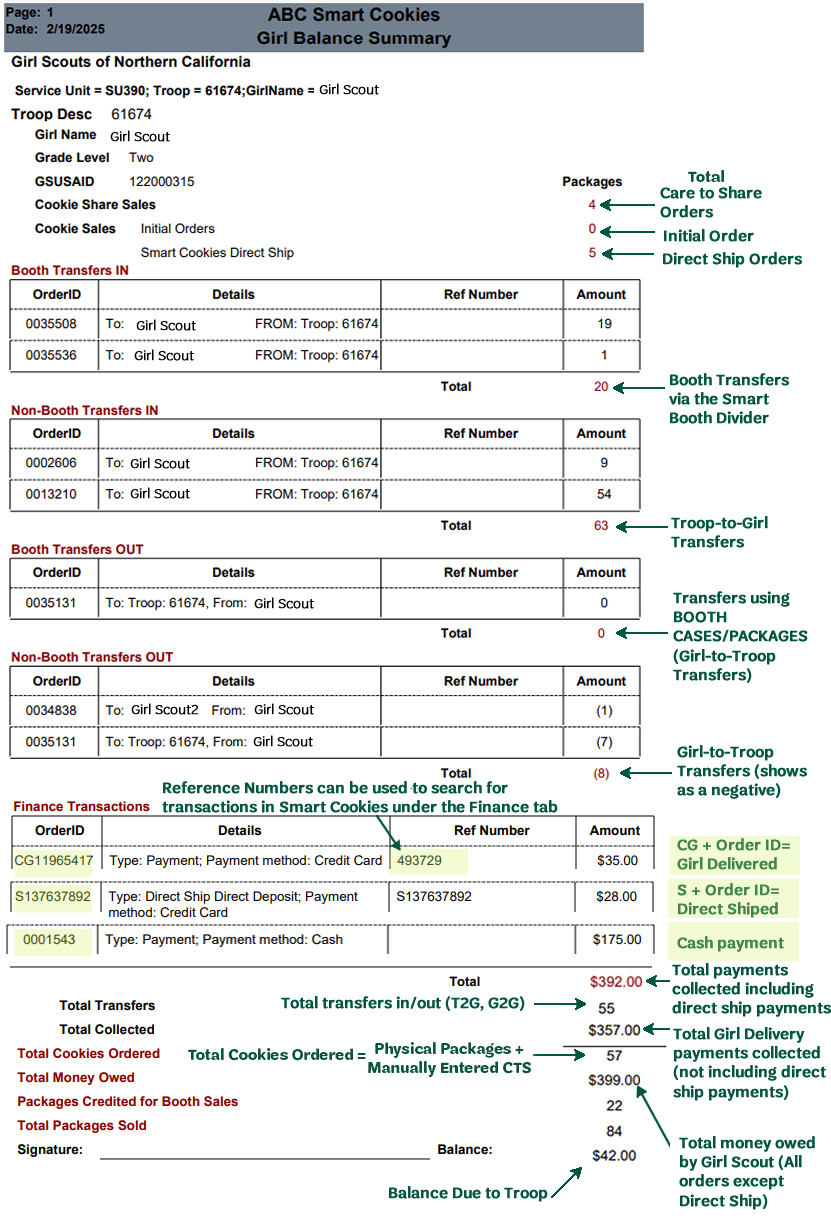
Please note* Total Cookies Ordered number includes all the physical packages as well as the manually entered Care to Share, allocated through the Virtual Cookie Share Tab in Smart Cookies.
Negative Balance Due
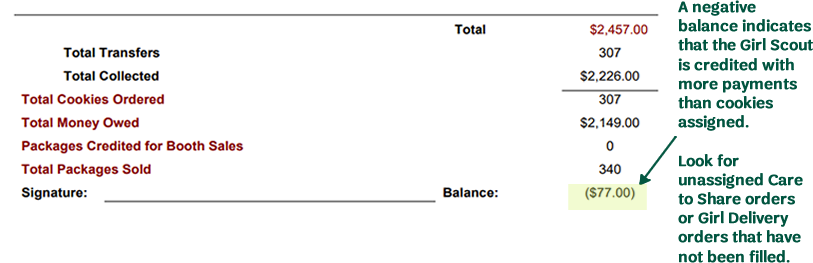
Please be sure that all troop to girl transfers have been entered and all Care to Share orders assigned to the girl before your final reconciliation with parents.
To see any outstanding Care to Share or Girl Delivery Orders in Digital Cookie, troop volunteers can use the All-Orders Report in Digital Cookie or the Girl Cookie Order Detail Report in Smart Cookies.
Girl Cookie Order Details Report
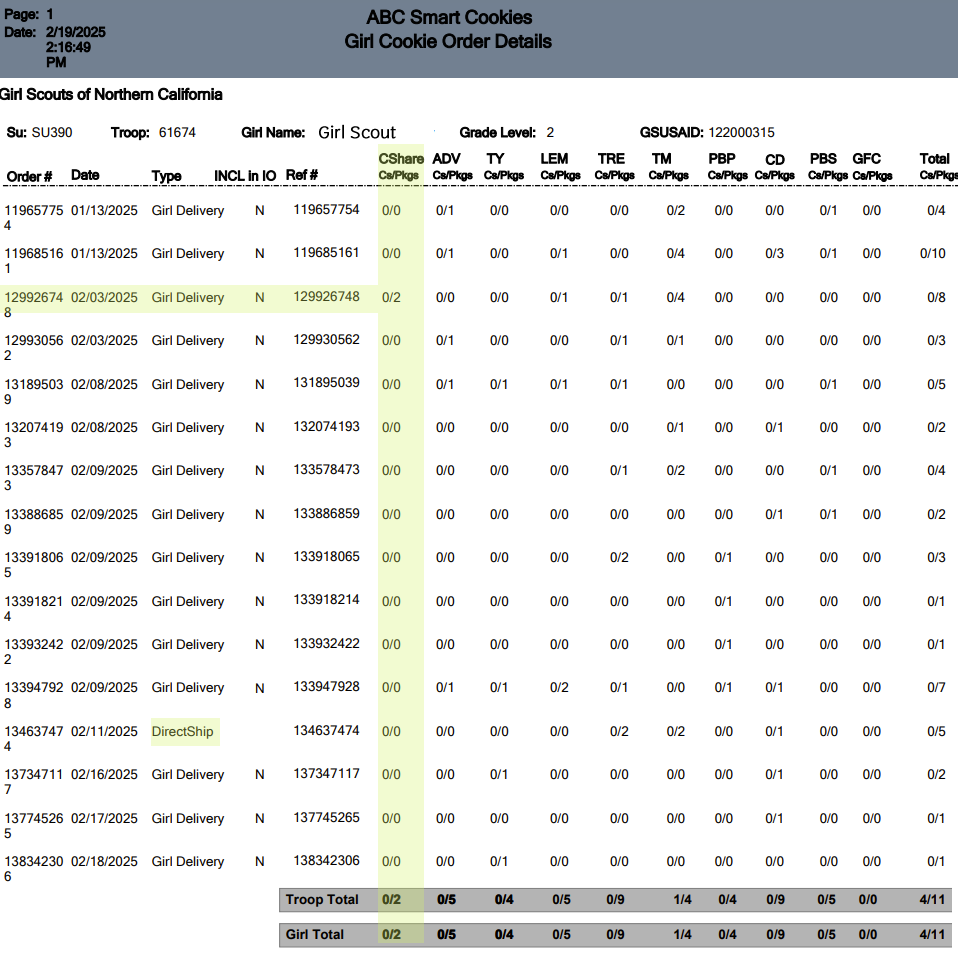
The Girl Cookie Order Detail Report provides details on orders imported from Digital Cookie.
- It will report both girl delivery and ship only orders.
- Girl delivered orders will need to be allocated in Smart Cookies as Girl Scouts pick up cookies from troop cookie chair to satisfy orders.
- All direct ship orders are already credited to the Girl in Smart Cookies. No action is needed on the part of the troop cookie chair.
- This report will also show totals of each variety sold by the Girl Scout including Care to Share, by the Girl Scout and the totals in relation to the whole troop.
- INCL in IO means included in initial order. As a direct sale council, no Care to Share was included in your initial order.
Available Booth Sale Summary
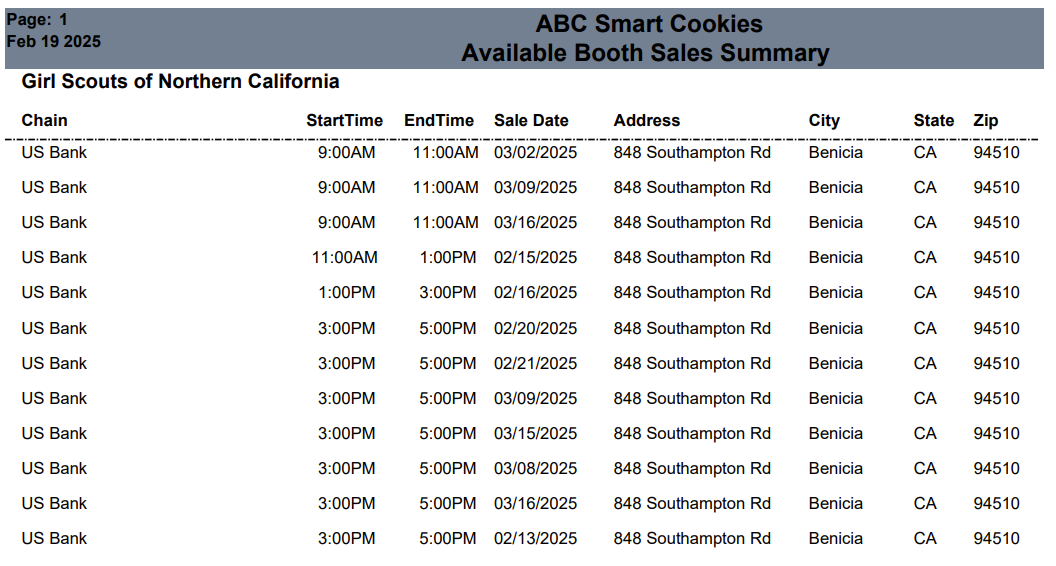
Lists all available booth locations and time slots. This list can be useful when trying to determine what booths you would like to sign up for in Smart Cookies, without live searching the Smart Cookies system. Selection criteria include location, start and end date.
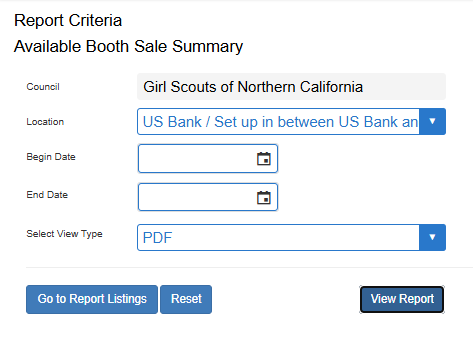
When running this report, you can choose the location you want to see from the drop-down menu (pictured) or you can run it for All Locations.
You can do the same for the date. Run the entire program or select the starting and ending dates to be between a specific time.
When you run this report, it can be run as a PDF or an Excel, under the Select View Type. The Excel is easiest to sort and manipulate the data however the PDF is cleaner to read.
Troop Balance Summary Report
The Troop Balance Summary Report provides troop information including proceeds and recognition plans, girls registered and selling, initial orders, transfers, ship only, and Care to Share orders. It also provides a breakdown of troop proceeds, amounts due to Council and all financial transactions. It is a useful final sales review.
In the example below, you will notice the highlighted values for calculating the ACH debit which is Councils Proceeds MINUS all payments (Digital Cookie, deposits, credits). The report mirrors the Smart Cookies dashboard, Financial Summary.


At the end of the program, you will notice credits from council and the ACH pull get added to the report and when combined with the credit card payments already listed you get a total of what was due to council.

For more help with ABC Smart Cookies you can contact them by visiting our gsHelpCenter article or contact the Cookie Hotline at 510-995-2900 or email info@gsnorcal.org.
Last updated on February 26, 2026