

Accessing gsLearn
gsLearn is accessed through your single sign-on account in MyGS. This means you can only access gsLearn through your MyGS account on a web browser, no matter the device.
Follow the instructions below to access gsLearn.
- From your computer/laptop or mobile device, go to gsnorcal.org, and click on MyGS at the top.
- Log in using the username and password you created when you set up your Girl Scout Member Account.

- Desktop/laptop: Once logged into MyGS, (1) click on My Account on the top right to make a menu appear on the left (if it isn’t already visible). (2) Then, click gsLearn from the menu on the left.
- Mobile: Once logged into MyGS, (1) tap the three horizontal lines menu and (2) select the My Account tab. (3) Then, select gsLearn from the drop-down menu.

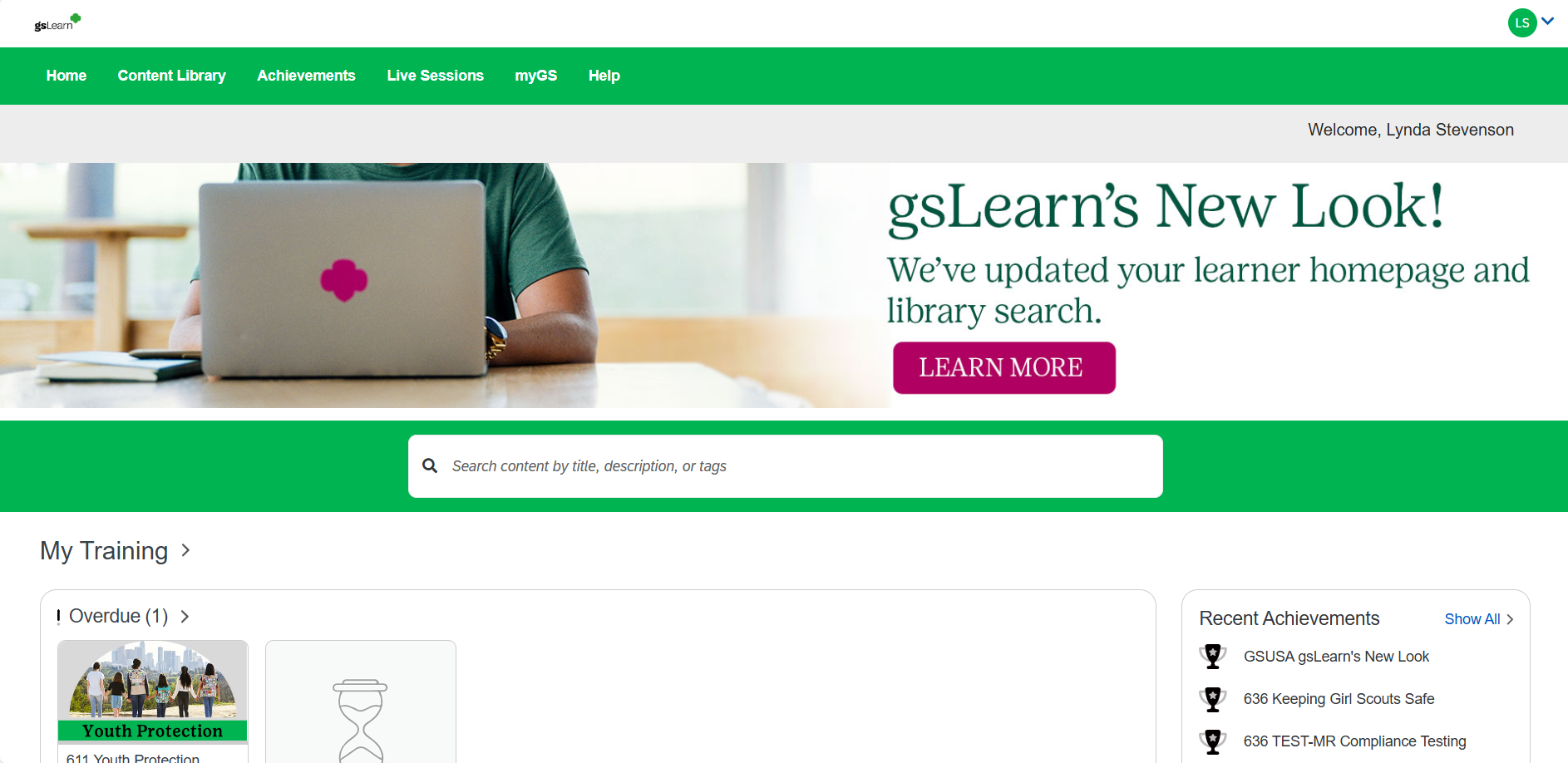
Once you are in gsLearn, you’ll find your options are in the green bar at the top of your screen (desktop) or in the three horizontal line menu (mobile). Here are the key areas to be aware of:
- Content Library: Search for and access all available Learning Paths and Courses.
- Achievements: View and download your certificates or your entire achievement report, both of which can be used to verify your training.
- MyGS: Opens MyGS in a new window.
- Sign Out: Click the downward arrow at the top right of the screen to open a dropdown menu and select Sign Out.
- Please note: If you wish to return to gsLearn after signing out, you must return to MyGS to login. Your username and password will not work if you try to sign in to gslearn directly.
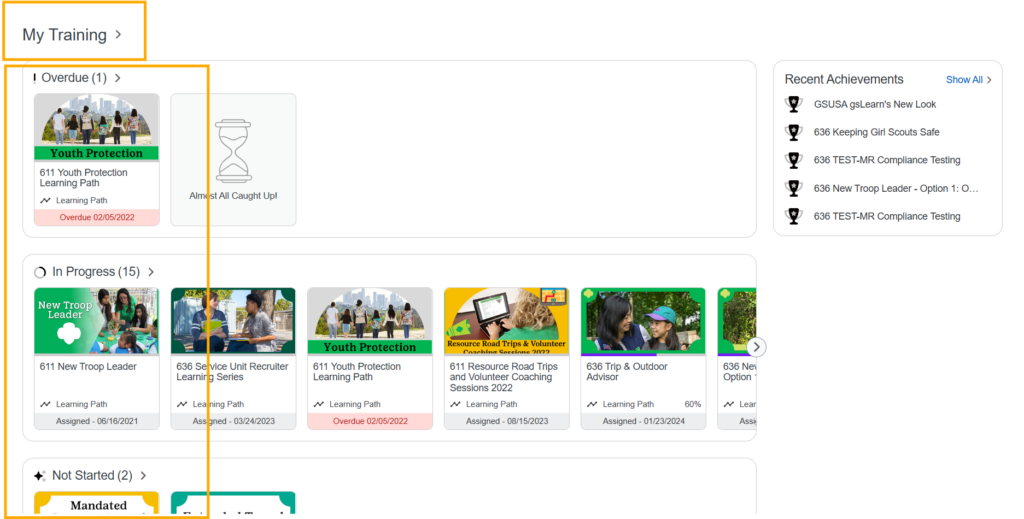
- As you continue to scroll down on your homepage, you will find all your trainings. They are organized in rows, and each lane is labeled. (See below)
- You will also see a list of your recent achievements on the right of the screen (desktop) or at the bottom of the screen (mobile).
If you have any issues with training completion, training requirements, or questions about gsLearn, please contact info@gsnorcal.org.
Last updated on November 6, 2025