

Renewing your Household – Household Admin
Log in to MyGS
- Go to Girl Scouts of Northern California’s website and click the “MyGS” link at the top of the screen.
- Log in using the username and password you created when you set up your Girl Scout member account.
- Once logged in, click “My Account” in the upper right-hand corner.
2. From your My Account page
- From the My Account screen:
- Click the green “RENEW NOW” button to select all members and renew your entire household (youth and adults).
- You can remove any members you don’t want to renew just yet when you review your cart.
3. Review Your Cart & Confirm Member Details
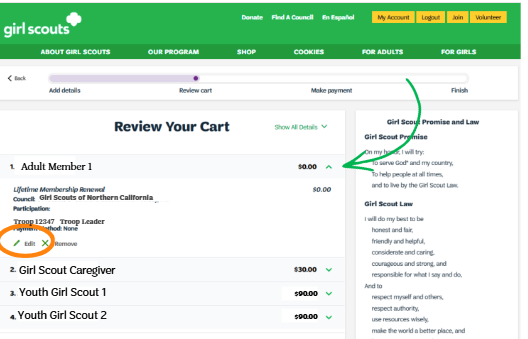
- One by one, use the green carrots next to each member to confirm, edit membership, or remove member from your cart.
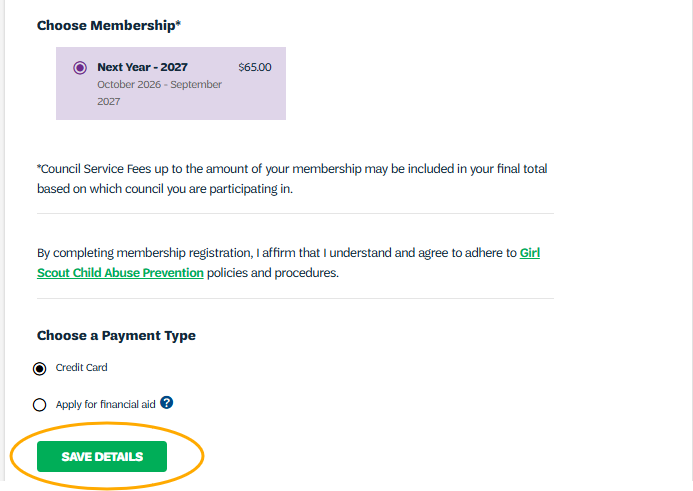
- Click “Edit” to make updates to the person’s membership type, name, payment type, or school info. For youth members click the edit button if you are requesting financial aid. See editing your cart from the “review cart” page below for details.
- Click “Remove” to remove the member from your cart if you don’t want to renew them just yet.
- To edit adult volunteer roles, you must renew using the My Household steps.
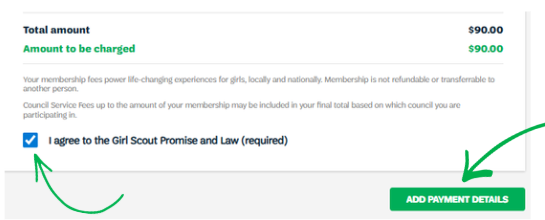
- Check the box to agree to the Girl Scout Promise and Law.
- Click “ADD PAYMENT DETAILS“.
4 . Add Payment Details and Complete Renewal
- Enter your card information and submit your payment.
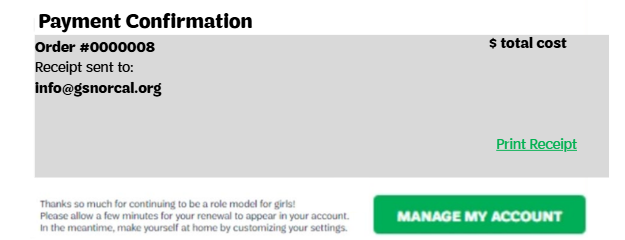
- Save or print your receipt.
Detailed steps and screenshots to renew individuals from the My Household page can be found in the dropdowns below:
Renewing household members from the My Household page in MyGS
1. From the account page click on My Household in the left-hand menu.
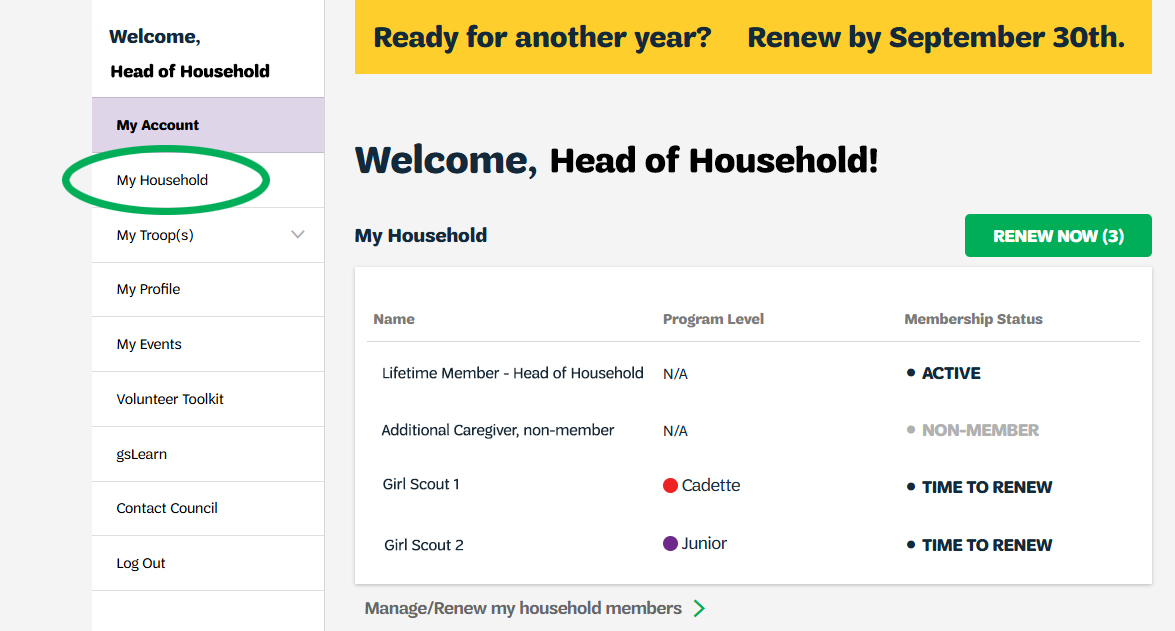
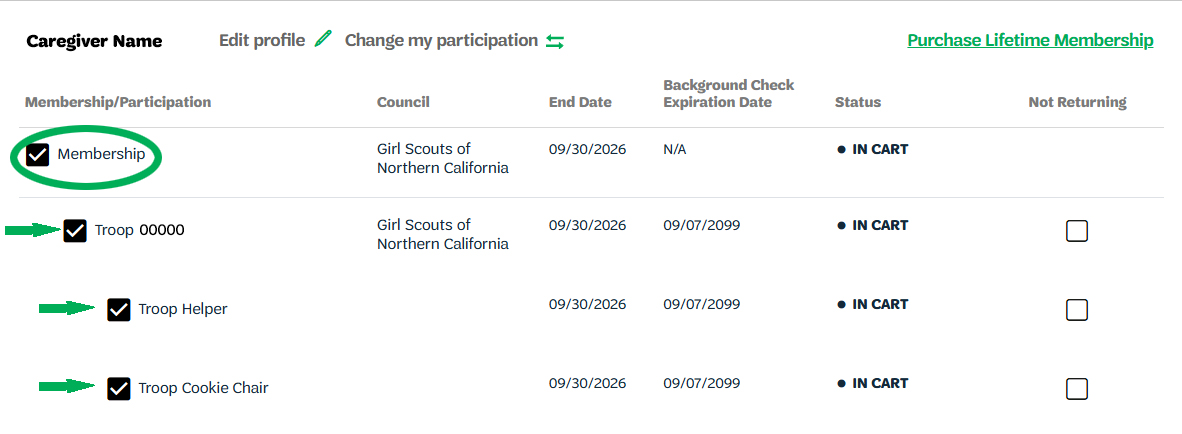
2. From the My Household page you can renew adult members by checking the membership box. This will automatically add all roles that are eligible for renewal into the cart. Unselect any roles that the adult member is not continuing by unchecking the boxes. For lifetime members, simply select the roles that are being renewed.
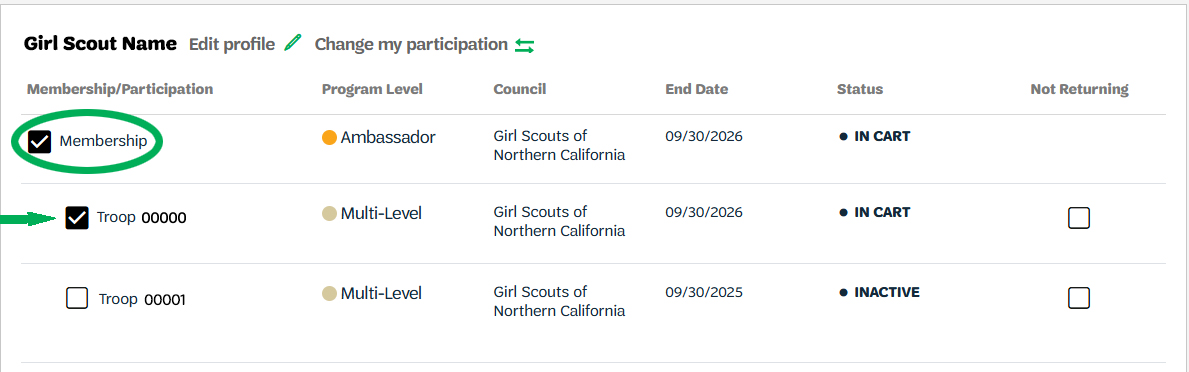
3. For youth members, select membership and it will automatically select all troop(s) they are currently active in. Troop or camp participations that have lapsed (were not renewed last year) will need to be selected separately. You can also find a new troop for your youth household members from the “Add a Troop” button.
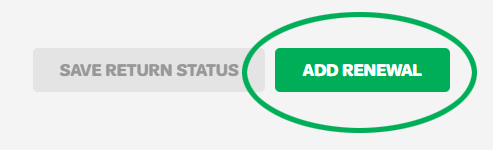
4. After selecting all household members you would like to renew, select the green “Add Renewal” button.
5. On the Add Details page, you will confirm the details of the adult(s) and youth(s) that you are renewing and choose payment type. Please note that this will only allow you to choose credit card payment, but you can apply for financial aid for youth members when you review your cart (see below).
Editing your cart from the “Review Cart” page
In the Review Cart section of MyGS you can edit membership type, roles, payment method or remove members from your cart.
- Use the green carrot next to each member to see the edit or remove button. Use the edit button to edit membership type, name, payment type, email address or school info.
2. The edit button will take you to the Confirm Member Details page, where you can choose the membership type and payment type. Once you have selected the membership and payment type, select save details.
3. From the Review Cart page, check the box to agree to the Girl Scout Promise and Law, then select the green “Add Payment Details” button.
4. On the Payment Details page, enter your credit card information and click “Submit Payment”. After submitting your payment you will see the payment confirmation number, who the receipt is emailed to, and the option to print the receipt.
This PDF provides adult members, who are listed as the head of the household in their MyGS Member Account, the following information:
- Detailed registration & renewal instructions with screenshots
- How to update a member’s personal information (I.e., phone, email, school, etc.)
- View and Print Membership Cards
- Register new youth or adult members to your household
- For Troop Leaders, how to invite a friend to join Girl Scouts and/or your troop
- Update volunteer role(s): renew, add, or renew a role
Registration/Renewal Steps for Household Primary Caregivers (PDF)
*Please note this process is most effective on a desktop, not a mobile device.
Last updated on August 10, 2026