

If you are a troop leader or hold another volunteer role that requires you to verify training for other volunteers, there are two routes to do so.
Ask the volunteers to follow the steps below to download their certificate of completion (option 1) or training report as a PDF (option 2). They can then email it to you or print a copy for your records. All required safety trainings have certificates of completion that can be downloaded.
OR
Reach out to your service unit or council staff to request a training record lookup. Be sure to include the volunteer’s first and last name, as well as the email address they use to log into MyGS.
| Steps | Screen Guide |
| Login to gsLearn through MyGS or click here Once there, locate the Achievements tab in the green menu bar at the top of the screen and click it. You will be taken to a screen that lists all training you have completed. From this screen, you have two options for providing proof of completion. | 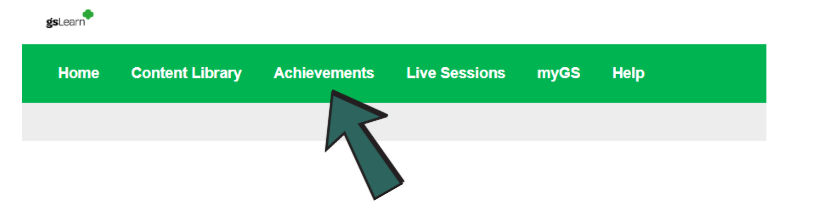 |
| Option 1: Download and send your completion certificates Many courses include a Certificate of Completion that you can download as a PDF to save, print, or email for training verification. To access your certificate, click Download Certificate. Your certificate will download as a PDF that you can save, print, or email to anyone reviewing your training completion. | 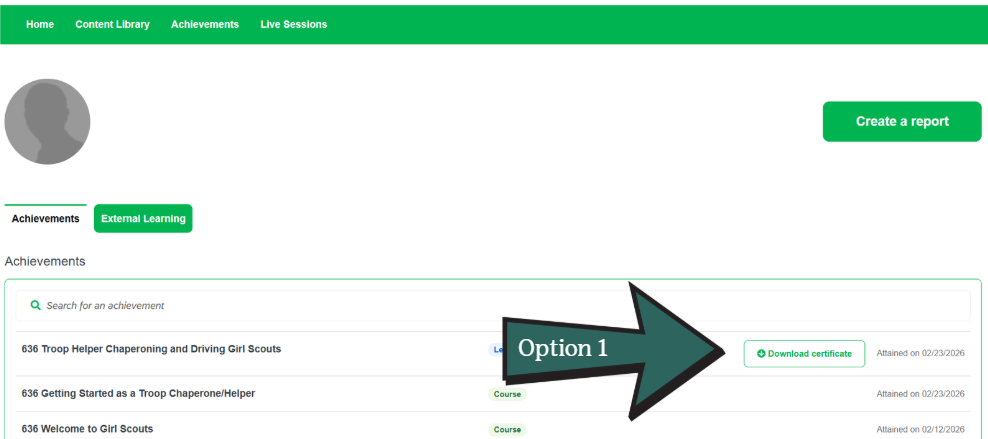 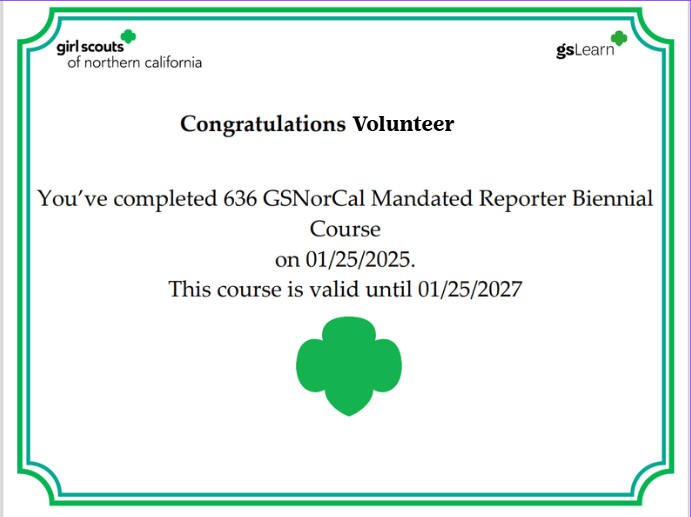 |
| Option 2: Download and send your full Completions Report gsLearn can generate reports showing your completed training. Click the green Create Report button and follow the prompts to create a PDF report. Be sure to not miss the title section, use your full name as the report title so it can be easily identified during review. | 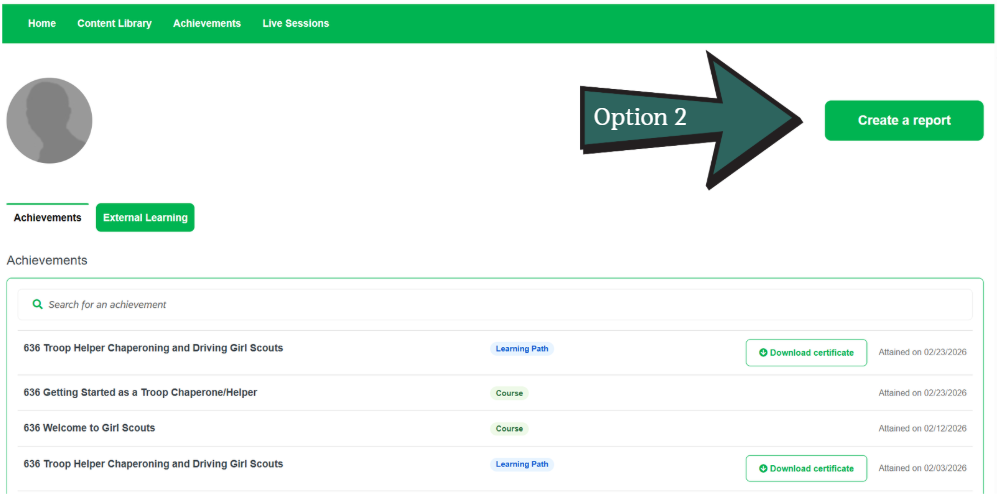 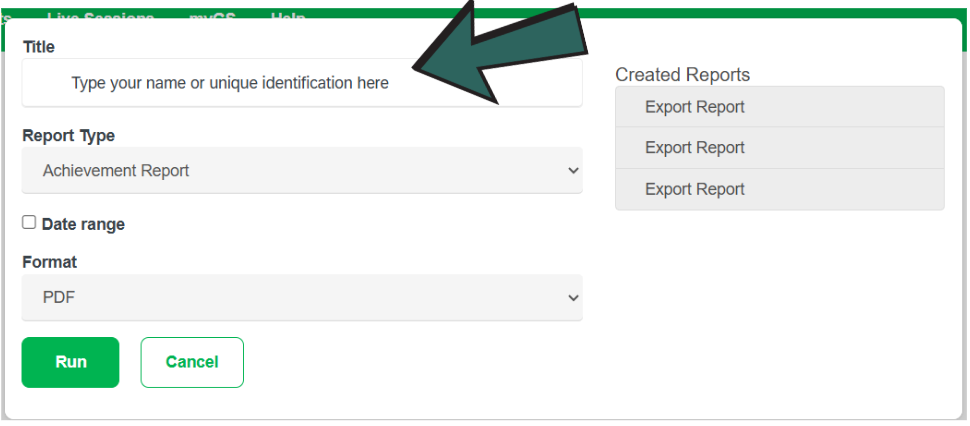 |
Last updated on June 3, 2026